Zoom
Connect your Zoom account to Qik Office and your appointment calendars can meet on Zoom. Each booking gets its own Zoom meeting, created in your Zoom account. Rescheduling a booking moves the meeting, and cancelling it removes the meeting. Notes and tasks stay in the Qik room.
Each person connects their own Zoom account. Company owners and admins choose whether members may use Zoom in Company integration settings.
Before you start
- A Qik Office account, as a host or owner of the room.
- A Zoom account that can schedule meetings.
Add Zoom
- Open the room, then open Appointments.
- Select New calendar, or open an existing calendar and choose Edit.
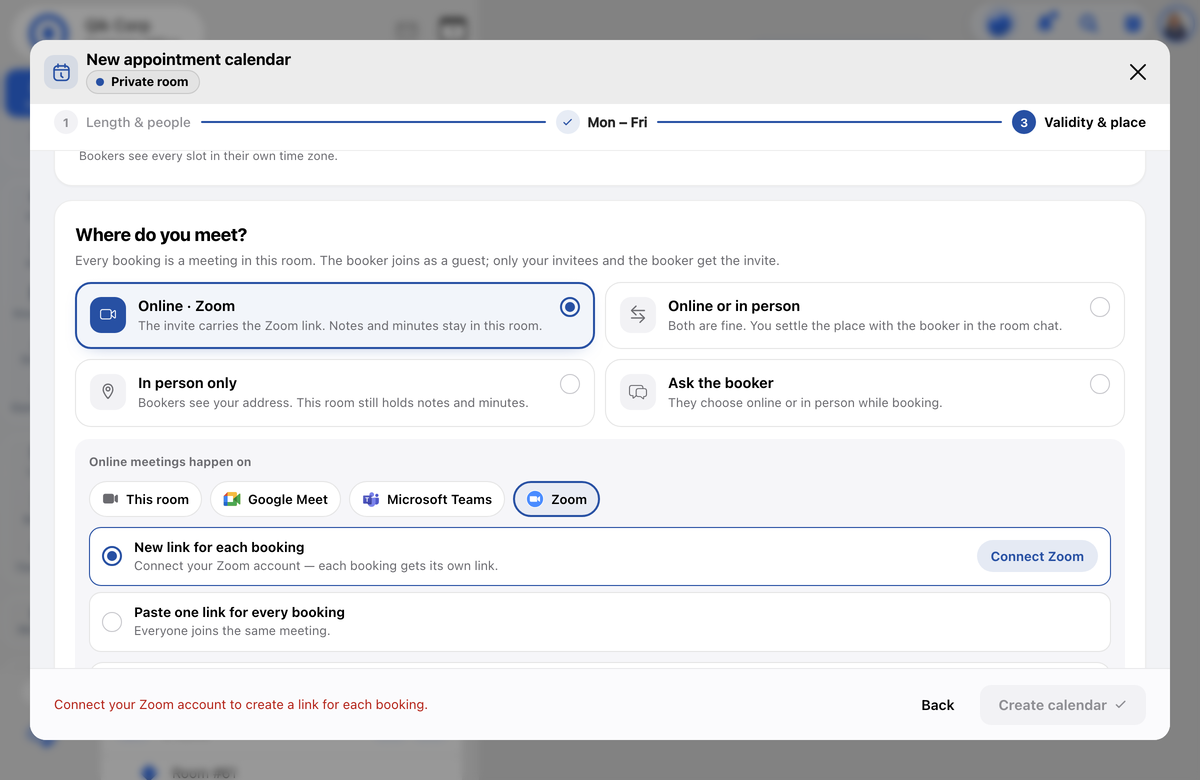
- In Validity & place, under Where do you meet?, choose the Online option.
- Under Online meetings happen on, select Zoom.
- Keep New link for each booking selected, and select Connect Zoom.
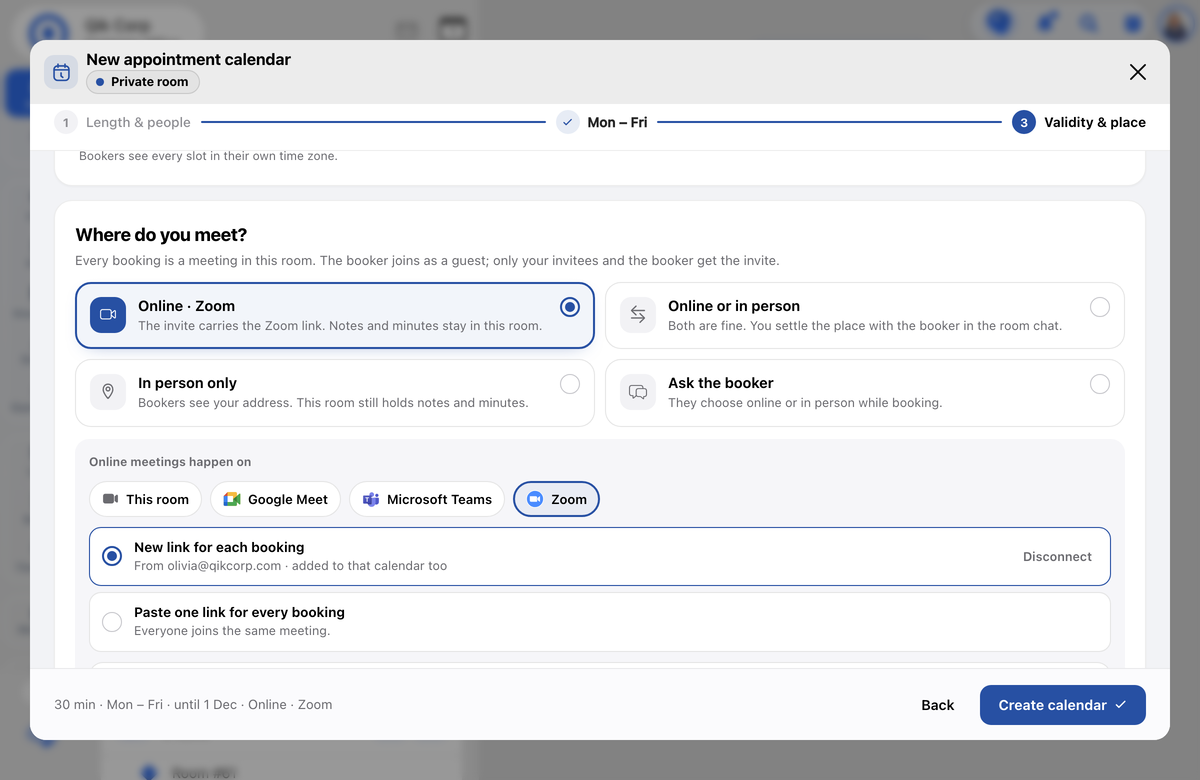
- Sign in to Zoom and select Allow. The window closes and the calendar shows From followed by your Zoom email.
- Select Create calendar (or Save).
Use Zoom
- New bookings — when someone books a slot, Qik Office creates a Zoom meeting in the calendar creator's Zoom account. The join link goes into the invite for your invitees and the booker.
- Reschedules — moving a booking updates the Zoom meeting's time.
- Cancellations — cancelling a booking deletes its Zoom meeting.
- One link for every booking — choose Paste one link for every booking to send everyone to the same Zoom meeting instead.
If Qik Office cannot create a Zoom meeting (for example, the Zoom account was disconnected), the booking still goes ahead in the Qik room, so nobody misses the meeting.
Remove Zoom
You can disconnect in either place:
- In Qik Office — open the calendar's settings and, on the New link for each booking option, select Disconnect.
- In Zoom — sign in to the Zoom App Marketplace, open Manage › Added Apps, find Qik Office and select Remove.
Either way, Qik Office deletes its stored Zoom access for your account right away. Zoom meetings that were already created stay in your Zoom account; new bookings on that calendar fall back to the Qik room until you connect Zoom again.
What Qik Office stores
- Your Zoom user ID and email, to show which account is connected.
- The Zoom access and refresh tokens, to create, update and delete meetings for you.
- For each booking, the Zoom meeting ID and join link.
Qik Office does not read or store your Zoom recordings, chats or participants. See the Privacy Policy.
Get help
Contact us at qikoffice.com/contact.